Framed
Screenshots and screen recordings that look good without extra work. Grab part of your screen and it opens on a clean background, ready to annotate and copy. Or record your screen and export a video that doesn't look like a screen recording.
Part of the Mac suite · in private beta — ask for a build
For Macs with Apple silicon running macOS 15 or later. Updates install automatically.
Screenshots
- ⇧⌘B and drag. The screen freezes so you can select exactly the area you want, with a magnifier and the size shown as you drag.
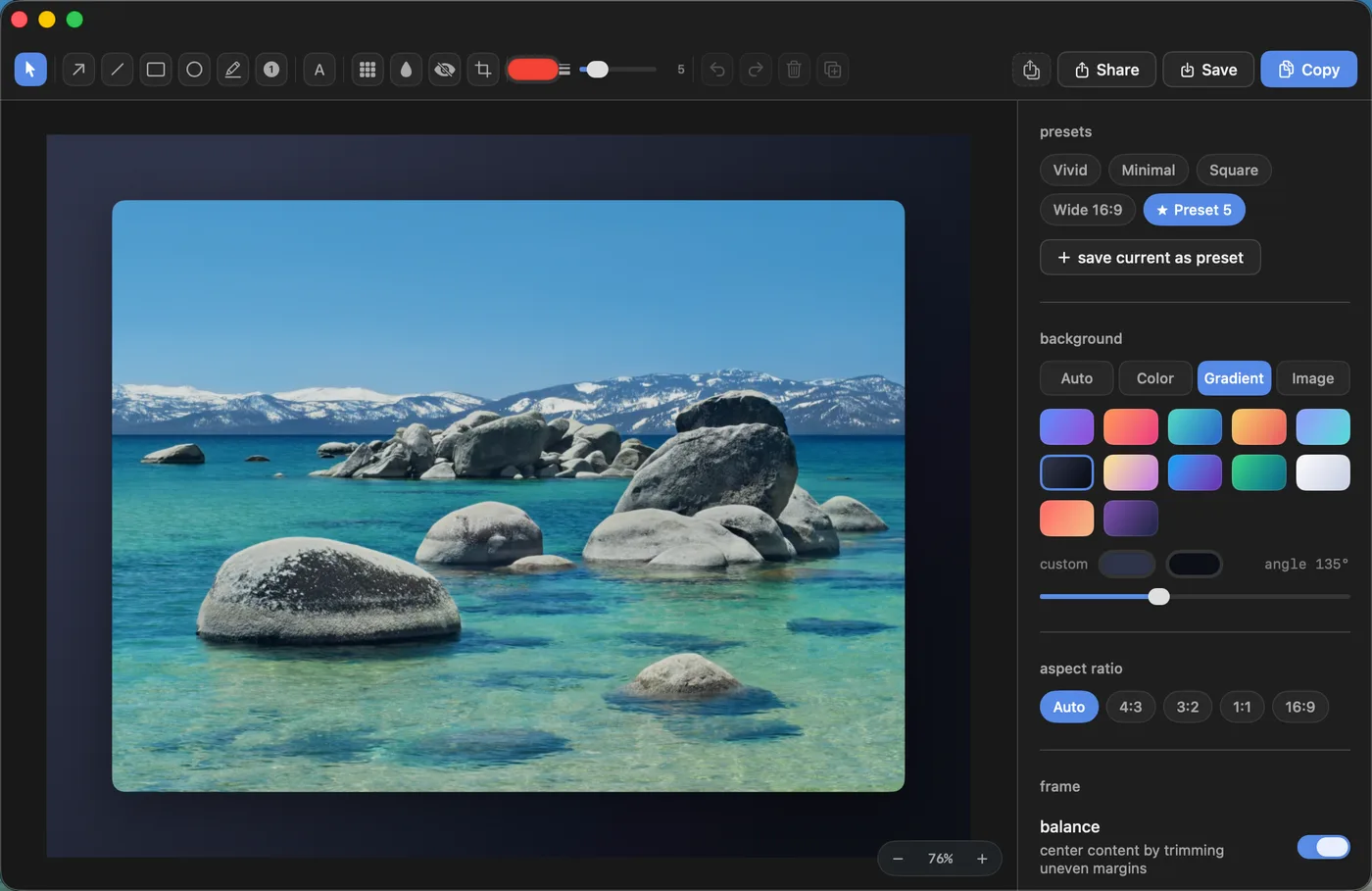
- Styled as you capture. A background (automatic, a colour, a gradient or your own image), padding, rounded corners, a shadow and a shape: square, widescreen and more.
- Annotate. Arrows, boxes, circles, lines, highlights, numbered steps and text. Blur or black out anything private. Undo anything.
- Copy and go. ⌘C puts the finished image on your clipboard. Or save it, or share it.
- Whole screens and windows. Capture a full screen or one window, each with its own shortcut. Set a timer, repeat your last selection, and find recent captures in one place.
- Presets. Save a look you like and use it for every capture.
Recording
- ⇧⌘R records a screen, a window or an area. Press it again to stop.
- Sound, your way. Your Mac's audio and your microphone are recorded separately, so you can adjust each one later.
- Zooms that follow you. Framed remembers where you clicked and suggests zooms to those spots. You can move or remove any of them.
- A simple editor. Combine clips, cut and trim, speed parts up, and use the same backgrounds as screenshots. Your projects are saved so you can come back to them.
- Export. A video in the size you need, from 720p to 4K, widescreen, vertical or square. Or a GIF for chat.
Quality
Captures are taken at your screen's full sharpness, and what you see in the editor is exactly what you get.
Privacy
Your screenshots and recordings never leave your Mac.
Framed asks for screen recording access, which any screenshot app needs. Microphone access is only needed if you want to record your voice. Accessibility access is optional and is only used to suggest zooms where you clicked.